
Manage Google Ads Account
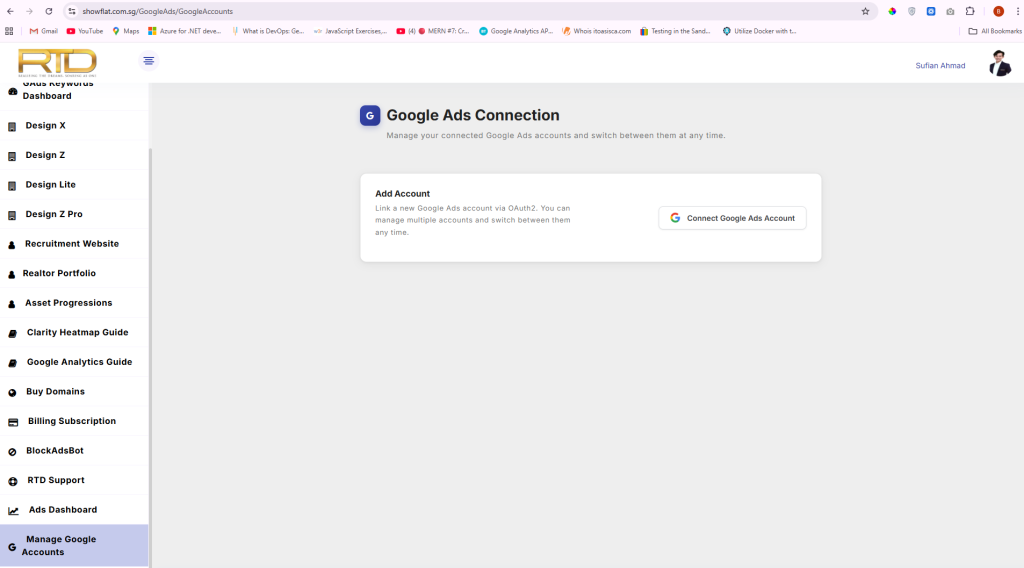
- Go to “Manage Google accounts” from left sidebar menu.
- Click on Connect Google Ads Account
- It will redirect to google consent screen.
- Click continue to allow access to you Google Ads Accounts
- Then you will be shown all your available Google Ads Account
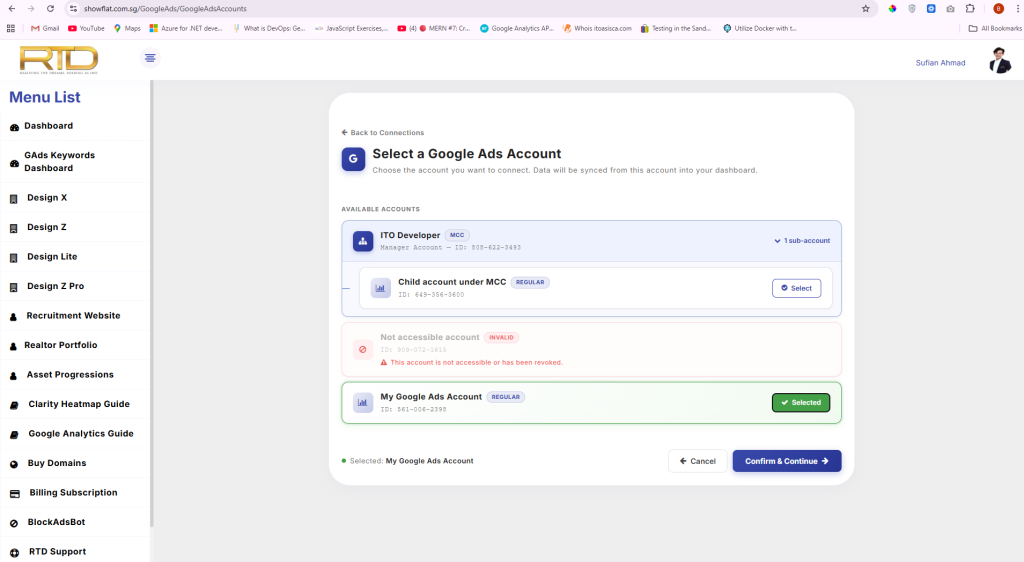
- Select your desired Google Ads Account
- It can be Regular Account or Child Account under MCC
- Click confirm and continue
- You can select multiple accounts this way but only one can be selected at a time.
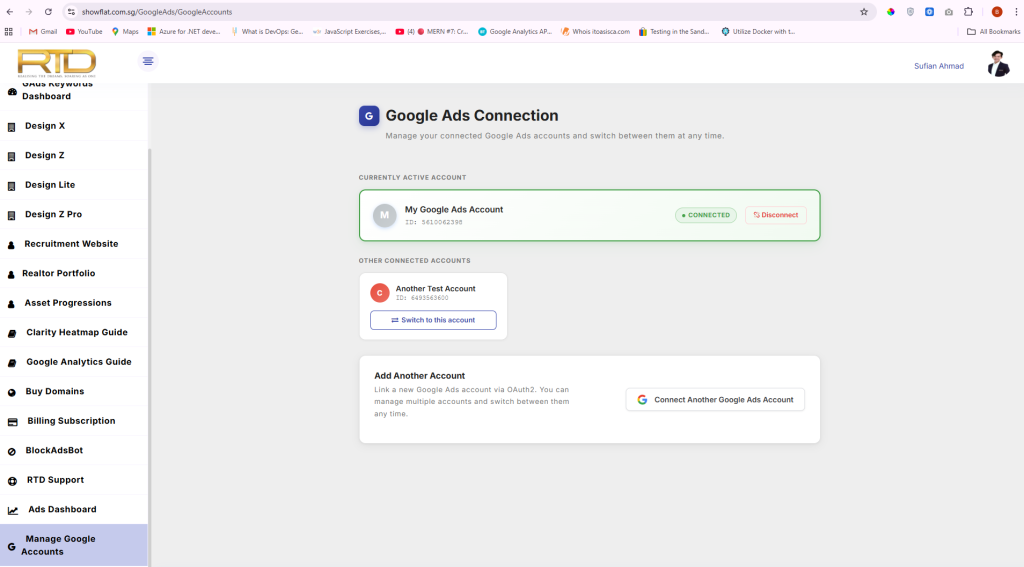
- You can switch accounts between already selected accounts.
- Ads account can also be disconnected.
Launch Campaign
- Go to “Launch Campaign” from sidebar menu
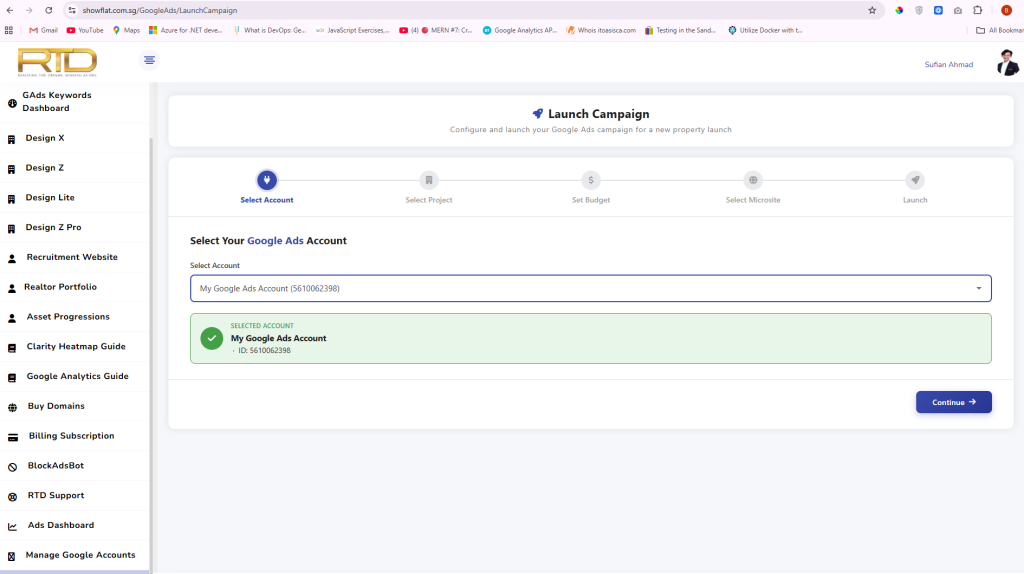
- Defaul selected account will be selected.
- You can change account if required.
- Click continue
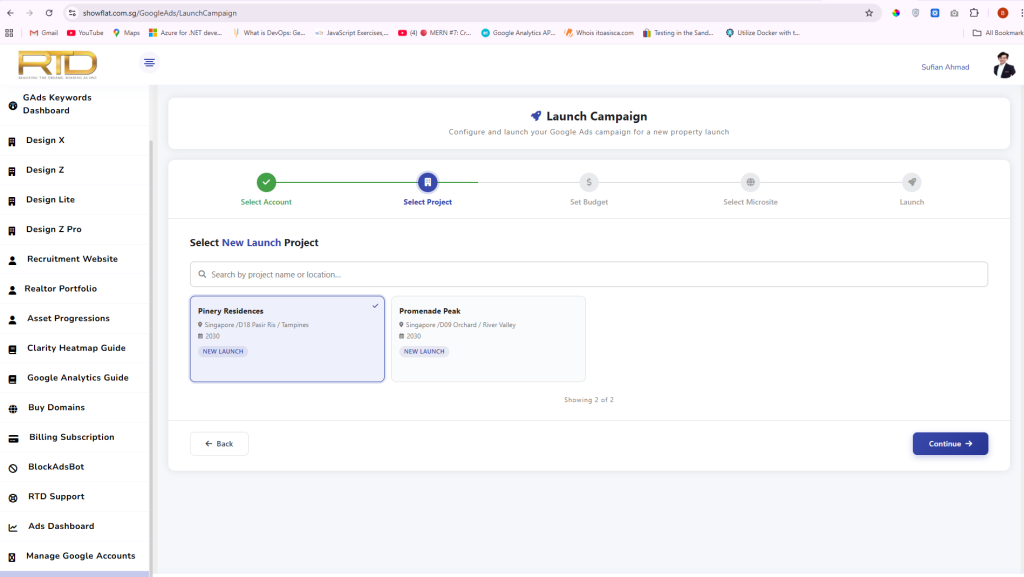
- Select new launch project from available projects
- Click continue
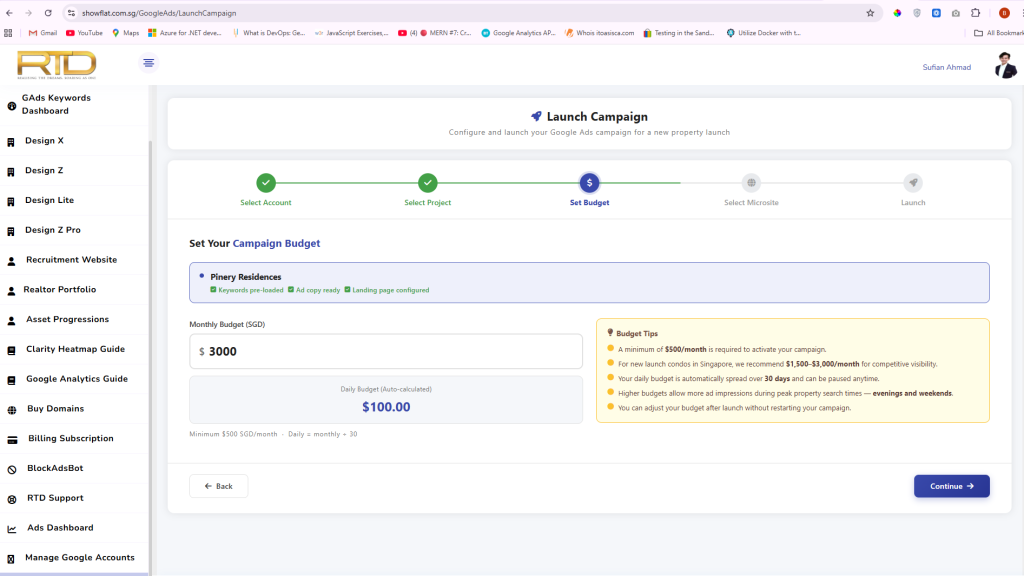
- Enter monthly budget of your campaign
- Click Continue
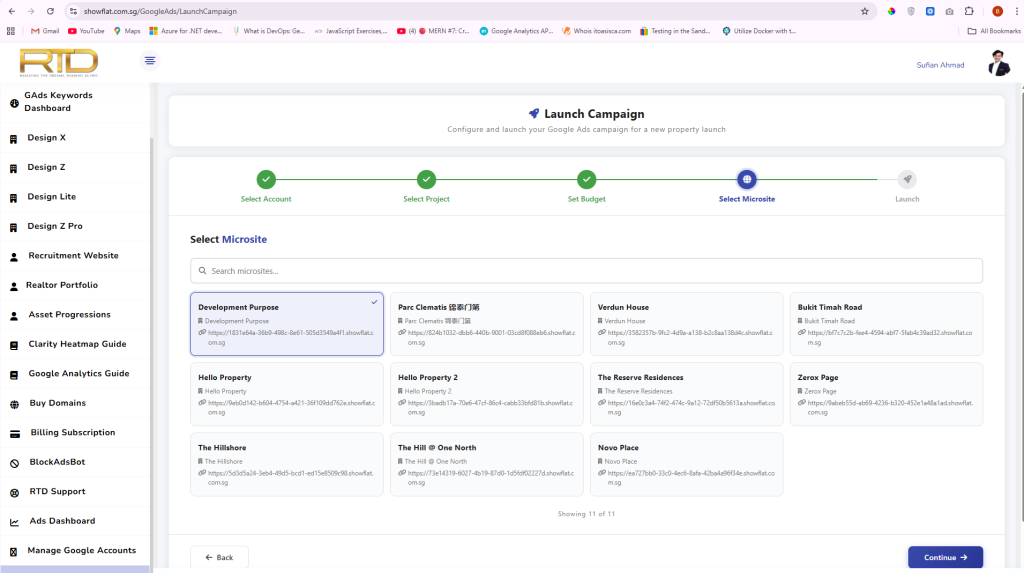
- Select Microsite from Microsite list
- This will be used by Google Ads as Landing Page
- Click Continue
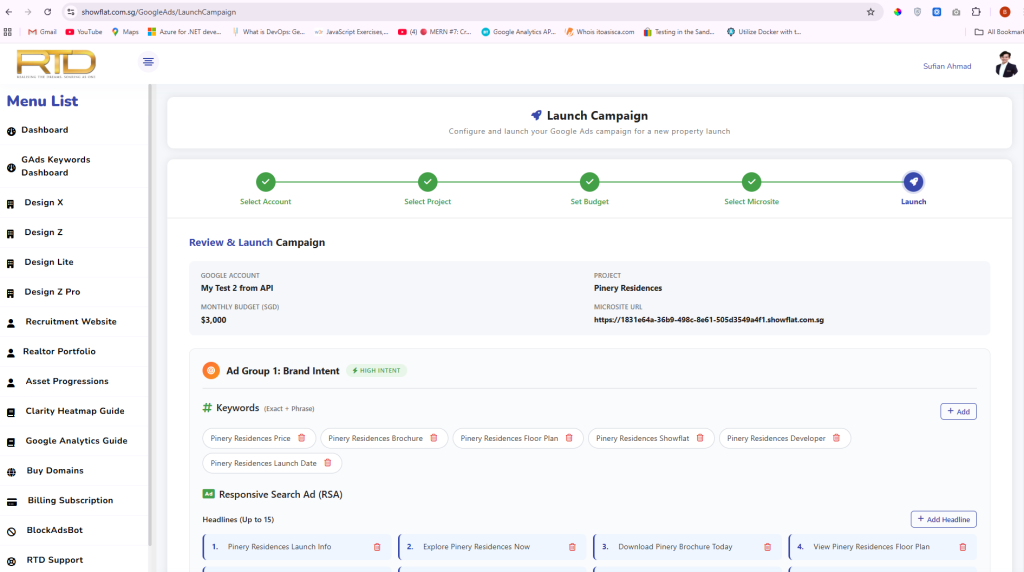
- Review your campaign before launching campaign
- You are prompted with preload data
- you can continue or make changes
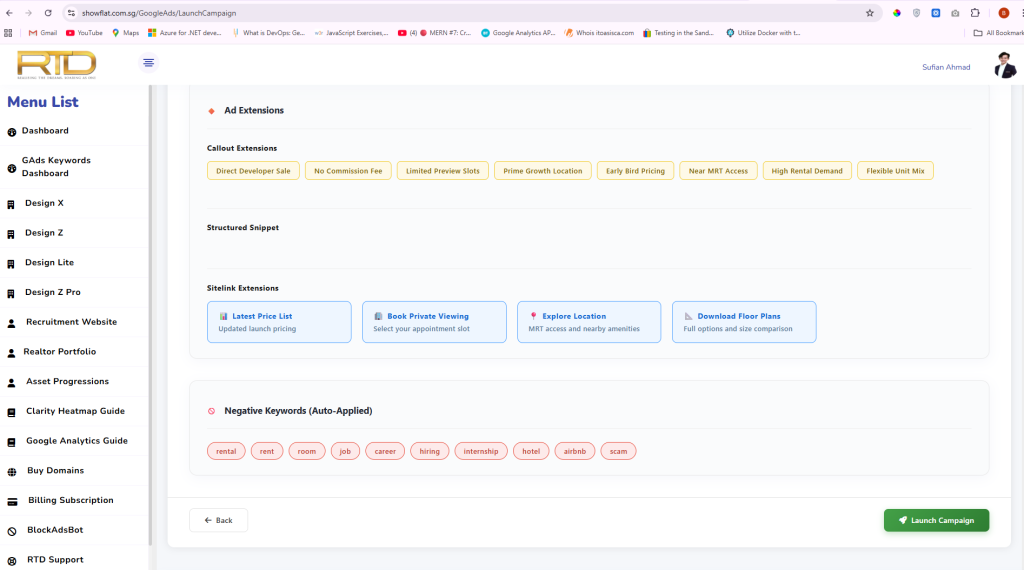
- Click “Launch Campaign”
- Verify by going to Google Ads UI https://ads.google.com/
Google Ads Dashboard
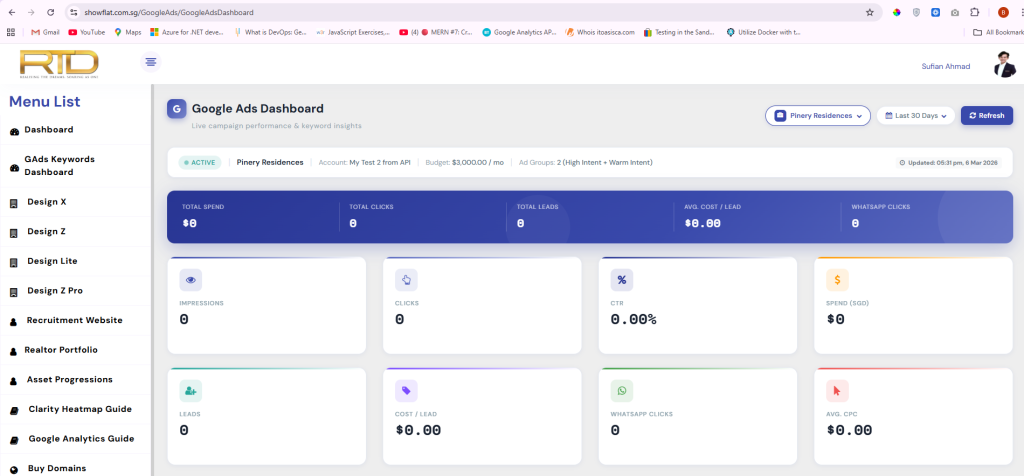
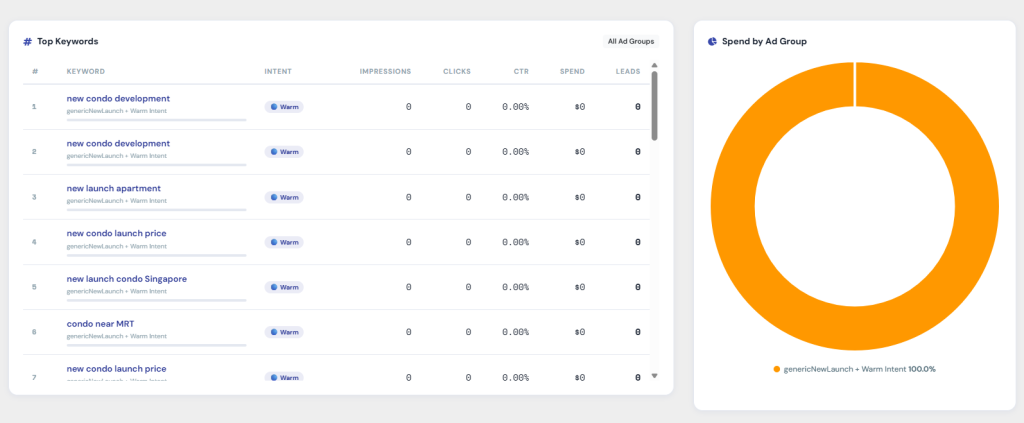
- Go to “Google Ads Dashboard” from sidebar menu.
- Default first available campaign metrics are loaded.
- You can switch between Campaigns
- Request data of specific dates